Photopea is the best free Photoshop alternative for most people. It runs in any web browser with no account, has nearly every retouching tool people use Photoshop for, and scored 16 of 20 points on our test with real Photoshop files, against 6.5 for GIMP and 5 for Krita. The catches are ads and AI tools that need Premium. If you'd rather install an app with no ads at all, Krita is the best free desktop editor, as long as you rarely open other people's PSD files.
People look for an alternative because Photoshop costs $22.99 a month on its own, or $19.99 in the Photography plan with Lightroom, both on Adobe's annual plan billed monthly (Adobe's plans page, November 2026), and most only need its everyday tools. We checked which free editors have those tools, what each free version holds back, and, hands-on, what happens to a Photoshop file when you open it somewhere else.
The best free Photoshop alternatives, ranked
Photopea
Photopea is No. 1 because it is the only free editor that handled Photoshop files well, and it gives up almost nothing on tools. In our test it showed 15 of the 20 files exactly as Photoshop saved them and two more nearly so, with text still editable as text, adjustment layers still adjustable, layer styles still editable and embedded smart objects still smart objects. When we saved five files back to PSD, all of that was still there, and a CMYK file stayed CMYK and a 16-bit file stayed 16-bit.
Where it slipped: it drew the color lookup adjustment and our levels adjustments wrong (files 9 and 11), and ignored knockout groups, a rare setting. Its menus and panels are laid out like Photoshop's, so a Photoshop user finds things where they expect them.
The tools are all there in the free version: adjustment layers, masks, a spot healing brush that fills what you paint over from its surroundings (Photopea's smart tools page), Refine Edge for hair and fur, liquify, and a RAW developer that opened our camera RAW test file. What costs money is removing the ads and using AI: Premium removes ads, doubles the undo history and adds 3,000 AI credits a month, and AI credits are available only to Premium users. It showed us Premium at €8 for 30 days, €15 for 90 days or €50 for a year, in euros even though we connected from the US. One of the AI answers we collected called Photopea "100% Free" with "no paywalls behind tools"; the editing tools are free, but the AI tools are not.
Krita
Krita is No. 2 and the best free desktop app: free from krita.org with no ads, no account and nothing held back, on Windows, Mac and Linux, with Android and ChromeOS versions in beta for tablets and Chromebooks. Its tools score nearly full marks: filter layers and masks that stay editable, a clone brush with a healing option, a Smart Patch tool that removes objects, liquify, a camera RAW importer, 16-bit editing, and real CMYK editing, which GIMP lacks. Tom's Hardware says Krita can tweak photos but lacks dedicated photo-manipulation tools; on our checklist it has all of them except a refine-edge step for hair, though they sit among the painting tools.
Its weak spot is Photoshop files. Krita scored 5 of 20 points, and three (a phone app layout with masks, a 32-bit file and a file with clipped adjustments) stopped with "The file format cannot be parsed." It kept text as editable text but replaced every font with a plain sans-serif, turned adjustment layers into ordinary paint layers, and kept layer styles but drew several of them wrong. Krita's own PSD page says as much in its own way: it recommends any other format over PSD.
Krita was built for painting, so its brushes come first and photo tools take some finding. If you mostly edit your own photos rather than other people's PSDs, that matters less than the price, which is nothing.
Affinity
Affinity is No. 3 and the best choice on an iPad: Canva made it free in October 2025 (PetaPixel), and it is the only editor here with a native iPad app as well as Mac and Windows versions. On paper it has the most complete toolset of the eight: RAW development, an inpainting brush, healing, liquify, a refine edge workspace for hair, non-destructive adjustments and CMYK, all in the free app (Affinity's photo editing page). We scored it from that documentation; we did not use Affinity, because it has no Linux version for our test computer.
Two things hold it back. To download it you sign in with a Canva account, and Canva's AI tools inside Affinity need a paid Canva plan (Get Affinity). And its Photoshop file support is documented but untested here: Affinity says layers come in intact, adjustment layers are mapped to its own, and text and smart objects stay editable if you switch on two settings (Affinity's guide to opening PSD files), but it says nothing about layer styles, and its format list says text is turned into pixels when you export a PSD (supported file formats). We give untested editors half the points their documentation claims, because Krita's documented PSD support for layer styles broke in our files. If Affinity's import is as good as Affinity says, it would score 8.2 and rank second, ahead of Krita.
GIMP
GIMP is No. 4: free, open source and without a single catch, but a little behind Krita on tools and on Photoshop files. It has non-destructive filters, which GIMP 3.2 can stack on a group to act like adjustment layers (GIMP 3.2 release notes), plus layer masks, Heal and Clone tools, a Foreground Select tool that separates hair-like edges, warp and 16-bit editing. It has no built-in object removal, CMYK only for proofing and export, and it opens RAW files only through darktable or RawTherapee, which you install separately; without them, our RAW test file didn't open.
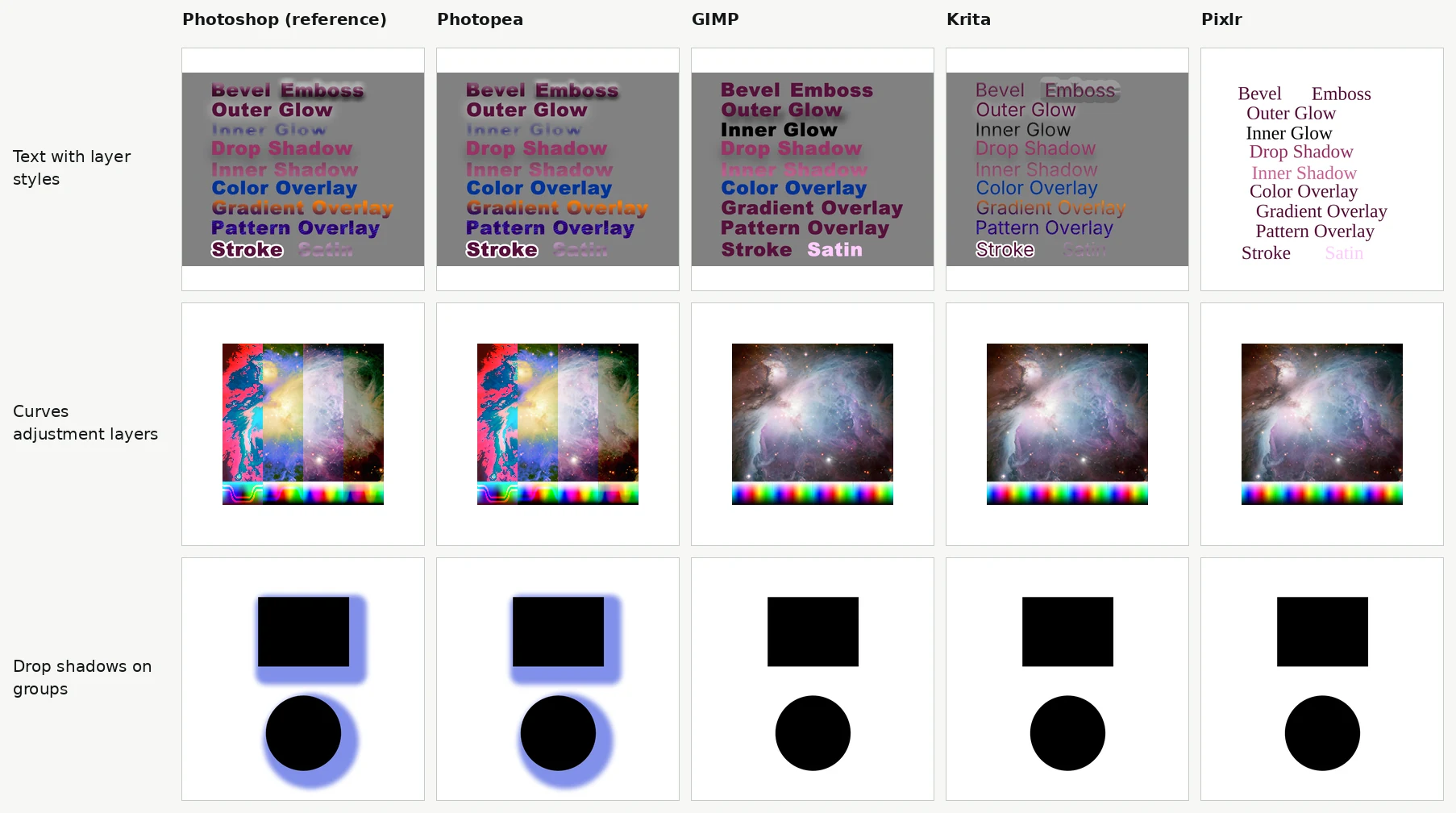
GIMP opened all 20 of our Photoshop files, which Krita didn't, and showed more of them correctly, scoring 6.5 of 20 points against Krita's 5. It still scores lower on Photoshop files, because it turns text into pixels, both when it opens a PSD and in the PSD it saves, while Krita keeps text editable. It also turns adjustment layers into empty layers, and tells you so in a notice when the file opens. It brought in four kinds of layer style (drop shadow, inner shadow, outer glow and color overlay) as editable filters, but drop shadows on groups and several text styles still came out wrong. Its PSD export keeps layers and groups, with the text still flattened.
GIMP's menus and shortcuts differ from Photoshop's. The free PhotoGIMP add-on rearranges them to feel more familiar; it changes the layout, not what GIMP can do with a PSD.
PhotoDemon
PhotoDemon is No. 5: a free, open-source Windows editor that runs without installing, even from a USB stick. It has content-aware fill for removing objects, a clone stamp, layer changes you can undo later and camera RAW import (PhotoDemon on GitHub). But its layer masks are still a work in progress, by its own code's account, there is no healing brush or liquify, and it edits in 8 bits per channel only. It opens and saves PSD files with layers, but it has no layer groups yet, and its PSD code says Photoshop features without a PhotoDemon equivalent won't appear in the loaded image. We scored it from its documentation and source code, since it runs only on Windows.
Pixlr
Pixlr Editor is No. 6. It runs in a browser like Photopea and has layer masks, a Heal tool with an object mode, a clone tool and liquify, but the free version stopped us after three saves in a day: "Snap! You have used all of your daily free saves!" Removing the limit and the ads costs $1.99 a month billed yearly (Pixlr pricing). Adjustments change the pixels directly, with no adjustment layers, and there is no 16-bit or CMYK mode.
With Photoshop files it scored 3 of 20 points. It flattened groups, showed layers that Photoshop had hidden, dropped adjustment layers and layer styles, and showed our 16-bit and 32-bit files as blank canvases. It can't save a PSD at all.
Pinta
Pinta is No. 7: a simple free editor for Linux, Mac and Windows, closer to Paint.NET than to Photoshop. It has layers, selections, a magic wand, text, a clone stamp and adjustments such as curves and levels that change the pixels directly (Pinta's website), but no masks, healing, RAW or 16-bit editing, and it can't open PSD files at all. It ranks above Paint.NET only because it runs on three systems rather than one. We scored it from its documentation and source code; with no PSD support, there was nothing for our file test to open.
Paint.NET
Paint.NET is No. 8: a free Windows editor for crops, resizes and simple touch-ups, not yet a Photoshop replacement. It has layers, a clone stamp and adjustments that change the pixels directly, but no layer masks, text layers or adjustment layers. Its roadmap plans layer groups and 16-bit images for Paint.NET 6.0 in 2027, with text, mask and adjustment layers in later releases. It can't open PSD files on its own; the free third-party PSD plugin adds that, but we don't count plugins, and with nowhere to put groups, text or adjustments, they couldn't survive anyway. We scored it from its documentation, since it runs only on Windows.
Which one should you choose?
- You open PSD files from clients, colleagues or template sites: Photopea. No other free editor came close in our test.
- You want an installed app with no ads and no account: Krita, on Windows, Mac or Linux.
- You're on a Mac or Windows and want the fullest toolset: Affinity, if a Canva account doesn't bother you. Test a few of your own PSDs before you rely on it.
- You're on an iPad: Affinity. On a Chromebook: Photopea.
- You already know GIMP: stay with it for your own photos, and open PSDs from others in Photopea.
- You want a small editor on an old or locked-down Windows PC: PhotoDemon, which runs without installing.
- You only crop, resize and touch up: Pinta on Linux or Mac, or Paint.NET on Windows.
- You never open PSD files at all: leave that criterion out and Krita (9.2) edges past Photopea (8.9), with Affinity and GIMP (8.5) next.
The call between Photopea and Krita is not close for anyone who handles PSDs: Photopea leads by 1.1 points, and its lead on Photoshop files (9 against 3.5) is worth more than Krita's lead on cost (10 against 7). Krita would only pass Photopea if opening Photoshop files counted for about 12 of the 100 points instead of 25. No. 2 is closer: Affinity would take it from Krita if its PSD import works as well as its documentation says.
How we tested
We collected 20 Photoshop files from the test suites of four open-source PSD libraries, each saved by Photoshop itself, from Photoshop CS3 to Photoshop 26.5. They cover what people send each other: web and app layouts, a print file in CMYK, text with every layer style, text on a path, all 17 kinds of adjustment layer, smart objects, a smart filter, blend modes, knockout groups, blend-if sliders and an artboard.
Every PSD carries a flattened image of the whole file, saved by Photoshop at the same moment. We opened each file in Photopea and Pixlr in a browser, and in GIMP 3.2.8 and Krita 6.0.4.1 on Linux (with Krita 5.3.4.1 as a repeat, which matched), compared what each showed with Photoshop's image pixel by pixel, and looked at every pair side by side. A file counted as right when we could see no difference, close when every element was there but a font or a line break differed, and wrong otherwise. Our test computer didn't have the fonts the files use, so a substituted font with the right layout counted as close at worst. Then we saved five files back to PSD from each editor that can, and read what survived. Affinity, PhotoDemon and Paint.NET don't run on Linux, and Pinta can't open PSD files, so those four were scored from their documentation and source code.
| Editor | Right | Close | Wrong | Didn't open | Score, of 20 (close counts half) |
|---|---|---|---|---|---|
| Photopea | 15 | 2 | 3 | 0 | 16 |
| GIMP | 6 | 1 | 13 | 0 | 6.5 |
| Krita | 3 | 4 | 10 | 3 | 5 |
| Pixlr | 3 | 0 | 17 | 0 | 3 |
Most AI answers we collected rank GIMP or Krita second for PSD files, and one describes Krita's PSD support as native. In our files GIMP flattened text into pixels, Krita lost every font, and both drew layer styles wrong. The file-by-file results, the save-back test and every score with its source are in the scoring sheet.
Is Affinity really free?
Yes. Affinity is free for Mac, Windows and iPad, with every editing tool, but you need a free Canva account to download it, and Canva's AI tools inside Affinity need a paid Canva plan (Get Affinity). There is no Linux version.
Can GIMP open PSD files?
Yes, but not editably. GIMP opened all 20 of our Photoshop files, turned text into pixels and adjustment layers into empty layers, and scored 6.5 of 20 points, with close counting half. For PSDs you need to keep editing, use Photopea.
Is Photopea really free?
Yes, every editing feature is free, with ads. Premium removes the ads and adds AI credits: Photopea showed us €8 for 30 days, €15 for 90 days or €50 for a year, as one-off payments, in November 2026; it showed euros even though we connected from the US. AI tools are available only with Premium.
Can I get Photoshop itself for free?
Only on a phone. Adobe launched a free version of its Photoshop phone app in February 2025 (TechCrunch); Photoshop on a computer needs a paid plan, from $19.99 a month for the Photography plan, or $22.99 for Photoshop alone, on the annual plan (Adobe's plans page).
How the score is built
Weighted average of the criteria below, out of 10
- Editing and retouching tools 30%
- A 10-point checklist of tools built into the free version. Non-destructive adjustments (1.5), layer masks (1), healing brush (1), clone stamp (0.5), object removal without paid AI (1), refine edge for hair (1), liquify (1), camera RAW (1), 16-bit editing (1) and CMYK (1).
- Opening Photoshop files 25%
- A 10-point checklist checked on our 20 test files. Layers and groups intact (1), text stays editable (2), adjustment layers stay live (2), layer styles stay editable (2), smart objects stay editable (1) and saves a layered PSD (2). Untested editors get half the points their documentation claims.
- Cost and catches 25%
- 10 minus what the free version holds back. A save or export limit (4), a watermark (4), ads (2), a required account (1) and built-in AI tools that need a paid plan (1).
- Platforms 20%
- Windows (3), Mac (3), Linux (1.5), Chromebook (1.5) and a tablet app (1). A beta, or a browser editor on a tablet, gets 0.5.
| Tool | Editing and retouching tools30% | Opening Photoshop files25% | Cost and catches25% | Platforms20% | Score |
|---|---|---|---|---|---|
| Photopea | 10.0 | 9.0 | 7.0 | 9.5 | 8.9 |
| Krita | 9.0 | 3.5 | 10.0 | 8.5 | 7.8 |
| Affinity | 10.0 | 4.0 | 8.0 | 7.0 | 7.4 |
| GIMP | 8.0 | 3.0 | 10.0 | 7.5 | 7.2 |
| PhotoDemon | 4.0 | 1.0 | 10.0 | 3.0 | 4.6 |
| Pixlr | 4.5 | 1.5 | 3.0 | 9.5 | 4.4 |
| Pinta | 0.5 | 0.0 | 10.0 | 7.5 | 4.2 |
| Paint.NET | 0.5 | 0.0 | 10.0 | 3.0 | 3.3 |
Also considered: 10 tools we left out
- Canva
- A template design tool, not a layer-based photo editor. Canva's own free Photoshop-style editor is Affinity, which is scored.
- darktable and RawTherapee
- RAW photo developers, alternatives to Lightroom rather than Photoshop, with no layers for combining images.
- PhotoGIMP
- A free add-on that makes GIMP look and behave more like Photoshop. It runs on GIMP, so it opens PSD files exactly as GIMP does.
- PhotoCraft
- An open-source editor its own roadmap calls early alpha. Promising, not ready for real work yet.
- Photoshop's free mobile app
- Adobe's own Photoshop, free only on phones; the desktop and web versions need a paid plan.
- Apple Photos and Windows Photos
- Basic editors with no layers.
- Lightroom
- Adobe's paid photo app, named only as something to pair with Photoshop.
- Fotor
- Its paid plan lists "HD download without watermarks" and no ads among its benefits, so free downloads are limited.
- Polarr
- Built around filters and presets for adjusting a photo, closer to Lightroom than Photoshop.
- Sumo Paint
- Its website didn't load for us in November 2026, so we couldn't check its current free version.